4.9 KiB
Quick Start
This page will help you quickly get started with the MiniMind-V project.
📋 Requirements
- Python: 3.10+
- PyTorch: 1.12+
- CUDA: 12.2+ (optional, for GPU acceleration)
- VRAM: At least 8GB (24GB recommended)
!!! tip "Hardware Configuration Reference" - CPU: Intel i9-10980XE @ 3.00GHz - RAM: 128 GB - GPU: NVIDIA GeForce RTX 3090 (24GB) - Ubuntu: 20.04 - CUDA: 12.2 - Python: 3.10.16
🚀 Testing Existing Models
Step 0: Preparation
# Clone the repository
git clone https://github.com/jingyaogong/minimind-v
cd minimind-v
# Download CLIP model to ./model/vision_model directory
git clone https://huggingface.co/openai/clip-vit-base-patch16
# or
git clone https://www.modelscope.cn/models/openai-mirror/clip-vit-base-patch16
Step 1: Install Dependencies
pip install -r requirements.txt -i https://pypi.tuna.tsinghua.edu.cn/simple
!!! warning "Torch CUDA Check"
After installation, test if Torch can use CUDA:
python import torch print(torch.cuda.is_available())
If unavailable, download the whl file from torch_stable for installation.
Step 2: Download Model
Download pretrained models from HuggingFace or ModelScope:
# From HuggingFace
git clone https://huggingface.co/jingyaogong/MiniMind2-V

# Or from ModelScope
git clone https://www.modelscope.cn/models/gongjy/MiniMind2-V.git
Step 3: Command Line Q&A
# load=0: load PyTorch model, load=1: load Transformers model
python eval_vlm.py --load 1
Step 4: Start WebUI (Optional)
python scripts/web_demo_vlm.py
Visit http://localhost:8501 to use the web interface for image-text dialogue.
📝 Effect Testing
Single Image Dialogue Examples
Test Image 1: City Street Scene
Q: Describe the content of this image
A: The image shows a busy city street with tall buildings on both sides of a long road.
   The street is packed with cars, trucks, and buses, along with many other vehicles...
Test Image 2: Panda
Q: What animal is in this image?
A: The image shows a white brown bear sitting on the grass, next to a large bear with brown spots.
   This bear seems shy or playful as it lies on the grass, resting...
Model Performance
| Model | Parameters | Inference Speed | Image Understanding |
|---|---|---|---|
| MiniMind2-V | 104M | Fast | 😊😊😊😊😊😊 |
| MiniMind2-Small-V | 26M | Very Fast | 😊😊😊😊 |
🔧 Loading from PyTorch Weights
If you want to use native PyTorch model weights (*.pth files):
Download Weight Files
Download the required weight files from:
Files needed:
sft_vlm_512.pthorsft_vlm_768.pth(SFT model weights)- Optional:
pretrain_vlm_512.pthorpretrain_vlm_768.pth(pretrained model weights)
Run Testing
# model_mode=0: test pretrain model, model_mode=1: test SFT model
python eval_vlm.py --load 0 --model_mode 1
📊 Model Architecture
MiniMind-V adds Visual Encoder and Projection layers on top of the MiniMind language model:
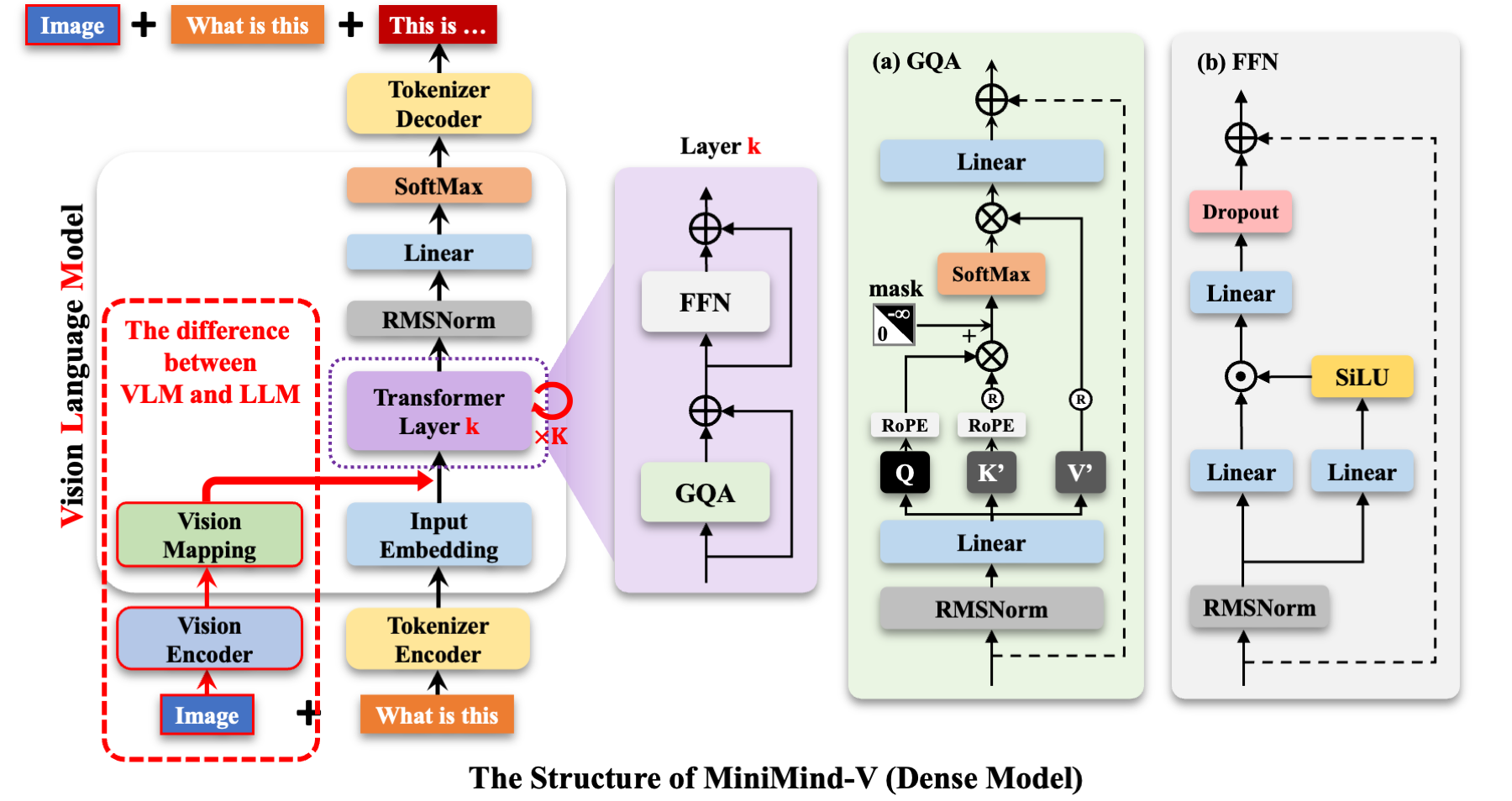
Core Components
-
Visual Encoder (CLIP)
- Uses
clip-vit-base-patch16model - Input image size: 224×224
- Output: 196×768 dimensional visual tokens
- Uses
-
Projection Layer
- Simple linear transformation
- Aligns visual tokens to text embedding space
-
Language Model (MiniMind)
- Inherits from MiniMind language model
- Supports text generation and dialogue
Model Parameter Configuration
| Model Name | Params | d_model | n_layers | kv_heads | q_heads |
|---|---|---|---|---|---|
| MiniMind2-Small-V | 26M | 512 | 8 | 2 | 8 |
| MiniMind2-V | 104M | 768 | 16 | 2 | 8 |
🎯 Next Steps
- Check Model Training to learn how to train your own vision-language model from scratch
- Read the source code to understand VLM implementation principles
- Try testing with your own images
❓ Common Issues
1. Model fails to load?
Ensure all dependency files are downloaded:
- CLIP model weights
- MiniMind-V model weights
- tokenizer configuration files
2. Out of memory?
- Use the 26M Small version
- Reduce batch size
- Use CPU inference (slower)
3. Poor image recognition?
- Ensure image quality is clear
- Try adjusting image size
- Use more specific question descriptions
🔗 Related Resources
- Online Demo: ModelScope Studio
- Video Introduction: Bilibili
- Project Home: GitHub